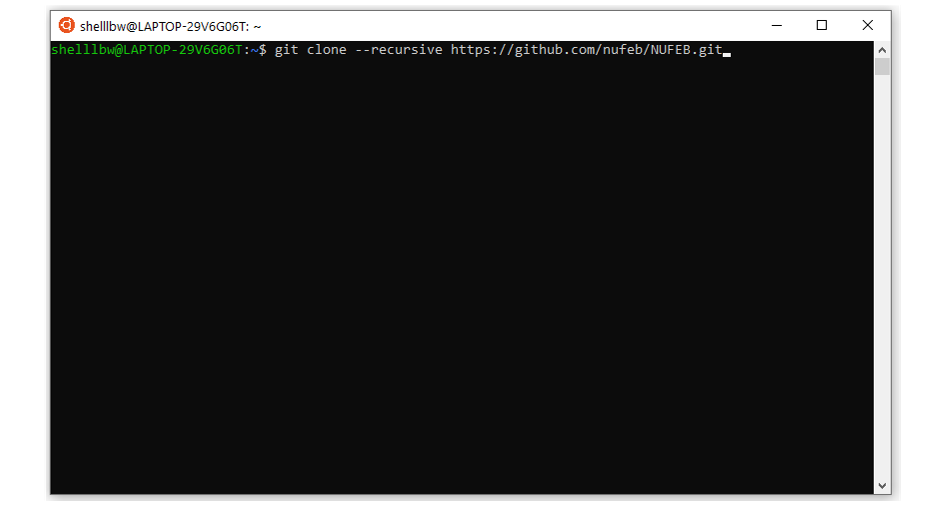
3. Install NUFEB on Windows
NUFEB does not support a direct Windows installation. However, there are a few ways to use NUFEB on Windows via compatibility layer or virtual machine. If you are using Windows 10 (64bit) - consider using Windows Subsystem for Linux (WSL). Alternatively, you can use a virtual machine software and compile and run NUFEB in a Linux virtual machine.
This section provides instruction for using NUFEB via WSL.
3.1. Install Windows Subsystem for Linux
Follow the steps below to install WSL on Windows 10:
Open Setting.
Click on Apps.
Under the “Related settings” section, click the Programs and Features option.
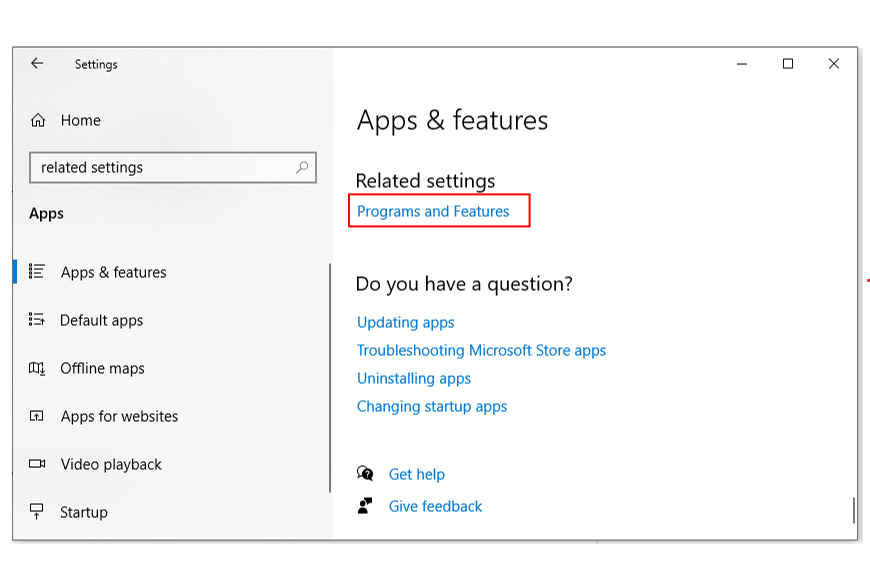
Click the Turn Windows features on or off option from the left pane.

This opens a dialog with a list of features you can install. Check the Windows Subsystem for Linux option and press OK.
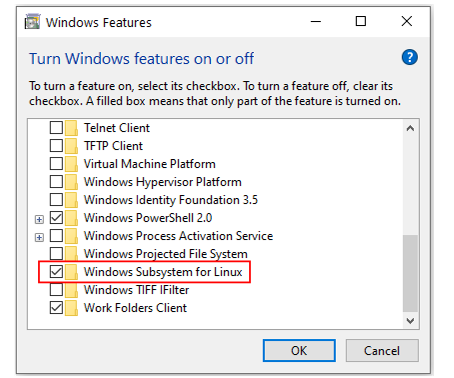
Click the Restart now button to reboot your PC and apply the change.
3.2. Installing Linux distros from Microsoft Store
Open Microsoft Store.
Search for the Linux distribution that you want to install (for using NUFEB, we recommend Ubuntu 18.04 LTS or higher version).
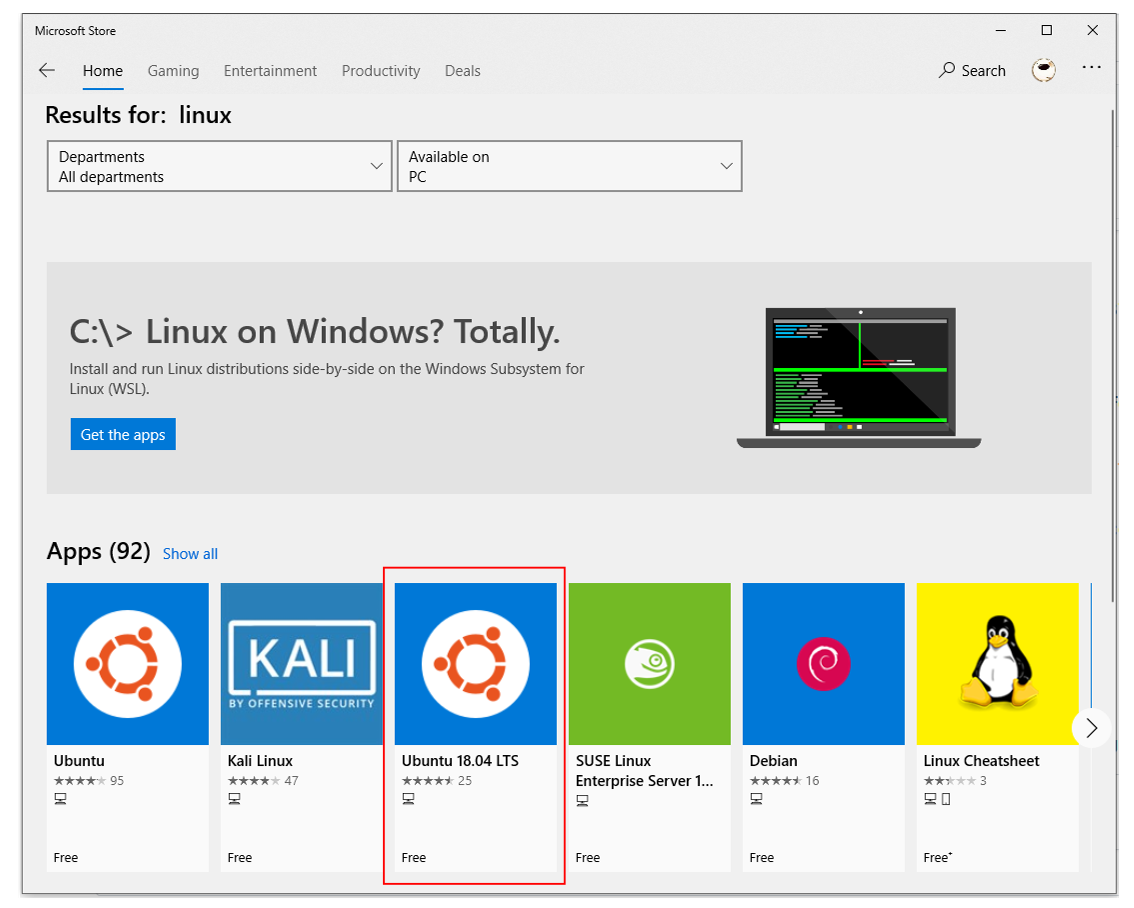
Click the Get (or Install) button.
Launch Ubuntu in Start menu (e.g, Ubuntu 18.04 LTS).
In the bash, create a username and password.
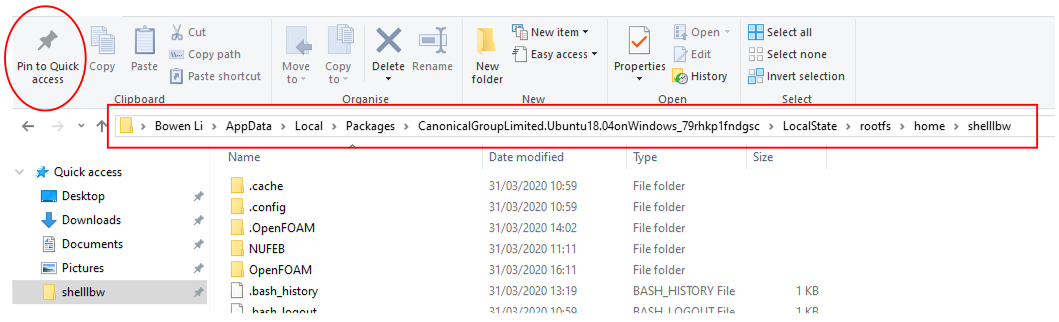
- The home directory of WSL is located in
%LOCALAPPDATA%\Packages\CanonicalGroupLimited.Ubuntu18.04onWindows_79rhkp1fndgsc\LocalState\rootfs (for Ubuntu 18.04 LTS).
You can Pin this path to the Quick access.
3.3. Installing NUFEB
You can now launch Ubuntu bash, and follow Installing on Linux & Mac to install the tool (Linux part).